Jul 2, 2026
How to Create a Digital Signature: Complete Tutorial
How do you create a digital signature? Follow the step-by-step guide to sign your documents and contracts in Word, PDF, and other formats.
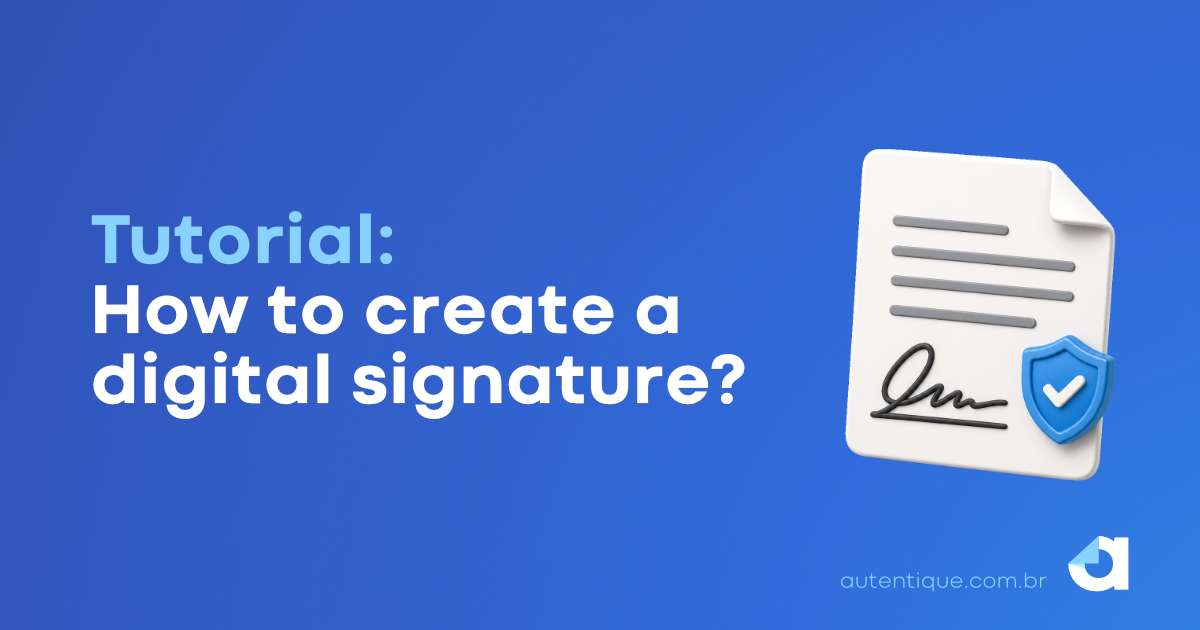
Creating a digital signature on a document or contract is easier than you might think. With just a few clicks, you can create and sign your document digitally.
How to create a Digital Signature: step-by-step guide
- Create your account with Autentique: enter your email address and choose your access password.
- Confirm your email: to make sure the email address provided belongs to you, we will send you a confirmation message. Simply click the link sent to you and you will be able to access Autentique.
- To complete your registration, fill in your personal information: enter your full name, country, and language. Then choose the type of account: individual or company.
- On the Autentique main dashboard, create a new document: access the dashboard and click “Create a new document”.
- Fill in the Signer field: in the first row of the “Signers” field, enter the email address registered with Autentique or click “Add me to the list”. At this stage, you can also add other people to sign, approve, acknowledge, witness, acknowledge receipt, endorse in black, or endorse in blank. If you want to send the document for signature by SMS or WhatsApp, enter the signers’ phone numbers.
- Select the document from your computer or Google Drive: to the right of the signers menu, add the document that will be signed. The file can be in PDF format or in common text formats such as DOC, DOCX, or ODT. After clicking “Next”, you will be able to position the signature in the desired place in the document.
- After defining the additional settings according to your preferences, click “Send for signature”: at this point, all signers previously entered will receive the document to sign.
- If you are one of the document’s signers, click “Sign” and complete the signature. If the document has also been sent to other signers, wait for the remaining signatures to be completed.
All set! Your document has been digitally signed and will remain stored in Autentique, so you can access it whenever you need it.
Now that you know how to create a digital signature, start using Autentique for free!
Latest articles
Contract: What It Is, How to Create One, and Key Precautions to Take
Contracts are more common than they may seem, but drafting a good one requires clarity. Identifying the parties, subject matter, obligations, deadlines, payment terms, and termination clauses helps avoid ambiguity and ensures greater security.

8 Sales Strategies to Close More Contracts
Signing the contract completes the sale, but getting to that point requires strategy. With good diagnosis, the right approach, objection handling, and automated processes, your team can reduce delays and close contracts with more speed.
Dating Agreement Template
Valentine’s Day is a time for romance, declarations of love, and clauses. Clauses? Yes. Warning: contains sarcasm and irony.